How to calculate tolls using TollGuru Trip Calculator
Getting started
Customize your TollGuru app to turn it into your personal trip calculator by setting your language, regions and creating account that saves your frequently visited addresses, your vehicles, tag transponders and more. You can also get toll information about several major cities and toll facilities across the globe.

How to create a new account on TollGuru app?
To avail features like changing regions, you must create an account. However, for calculating tolls (in default region), it is not required. You can create an account on the TollGuru app by either using your Google account or by manually filling in all the details.
 Step 1
 Sign up with email
 Sign in with gmail
How to change region in TollGuru app?
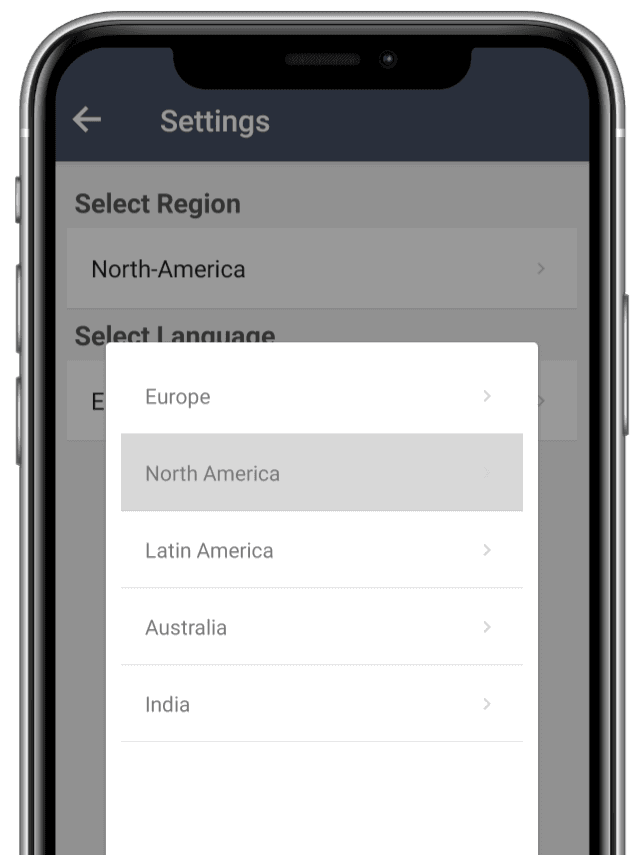
TollGuru app is available in 5 regions- Europe, North America, Latin America, India and Australia and 9 languages- English, Spanish, French, Italian, Swedish, Dutch, Irish, Hindi and Punjabi.
Selecting region is important as the address selection and trip calculations are supported within selected regions only.
Tip: To be able to select a different region you must sign up and login first.
 Step 1
 Step 2
 Step 3
How to access frequently visited addresses?
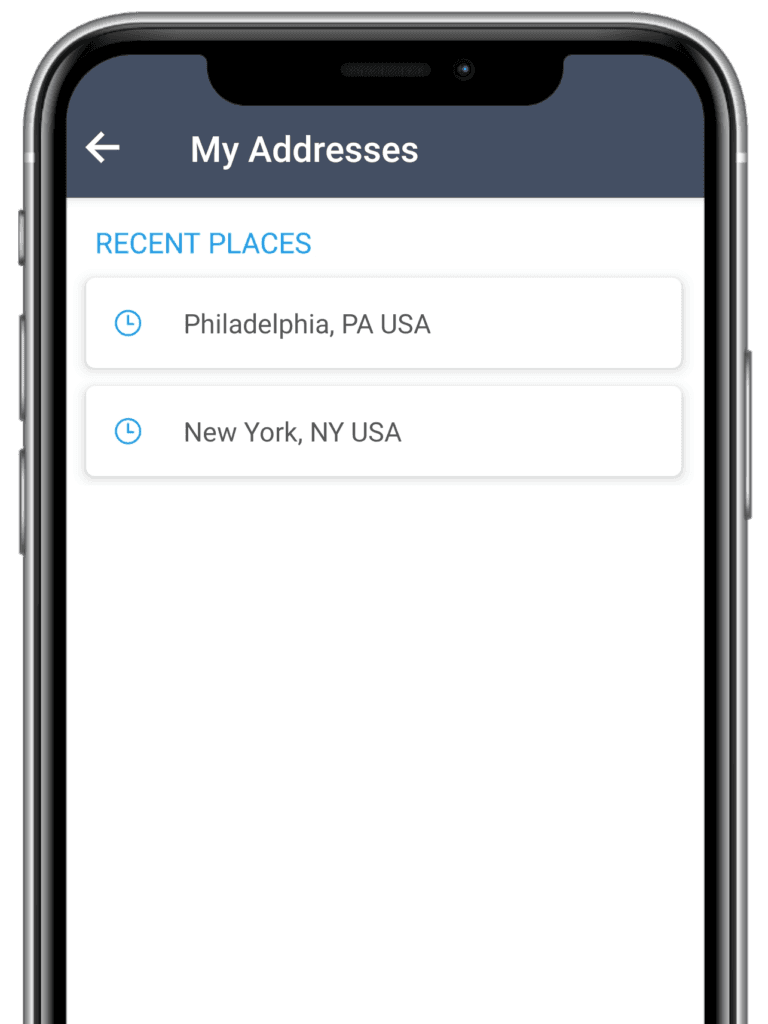
TollGuru app automatically saves your last entered addresses for quick access.
You can access those through the My Addresses option from the sidebar menu.
 Step 1
- Step 2
Add tag transponder/toll pass
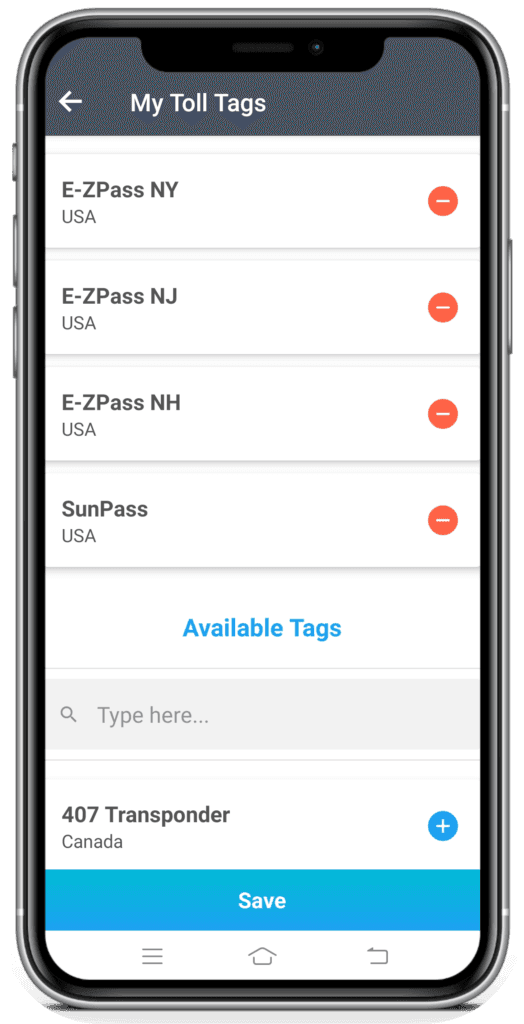
Add the toll tags you own to the TollGuru app to customize the toll cost calculations and see toll rates based on your tag transponder.
Access the toll tags option from the sidebar menu.
 Step 1
- Step 2
Add vehicles to your account
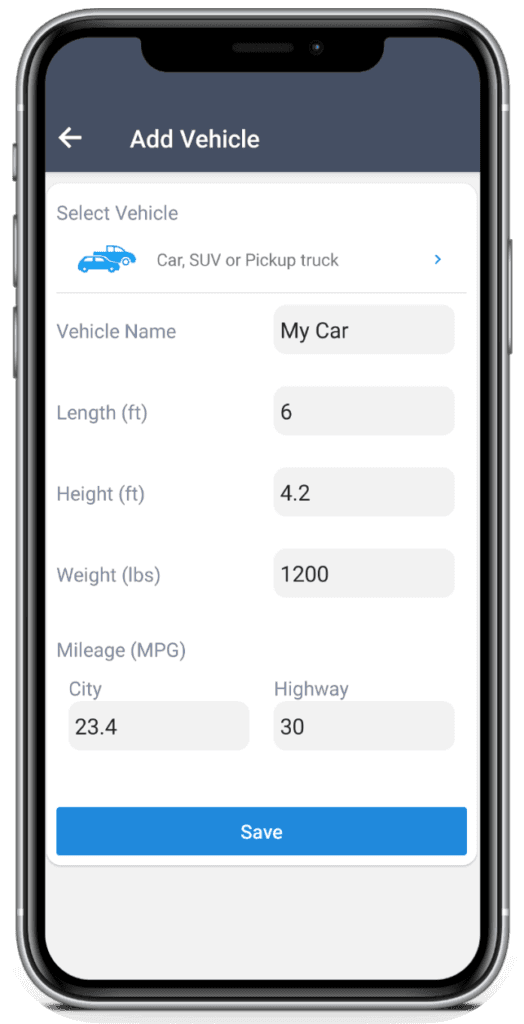
Add vehicle section from the side menu allows you to save vehicles that you drive most often for quick access and access from the Saved Vehicles list. You can add as many vehicles as you wish in this list.
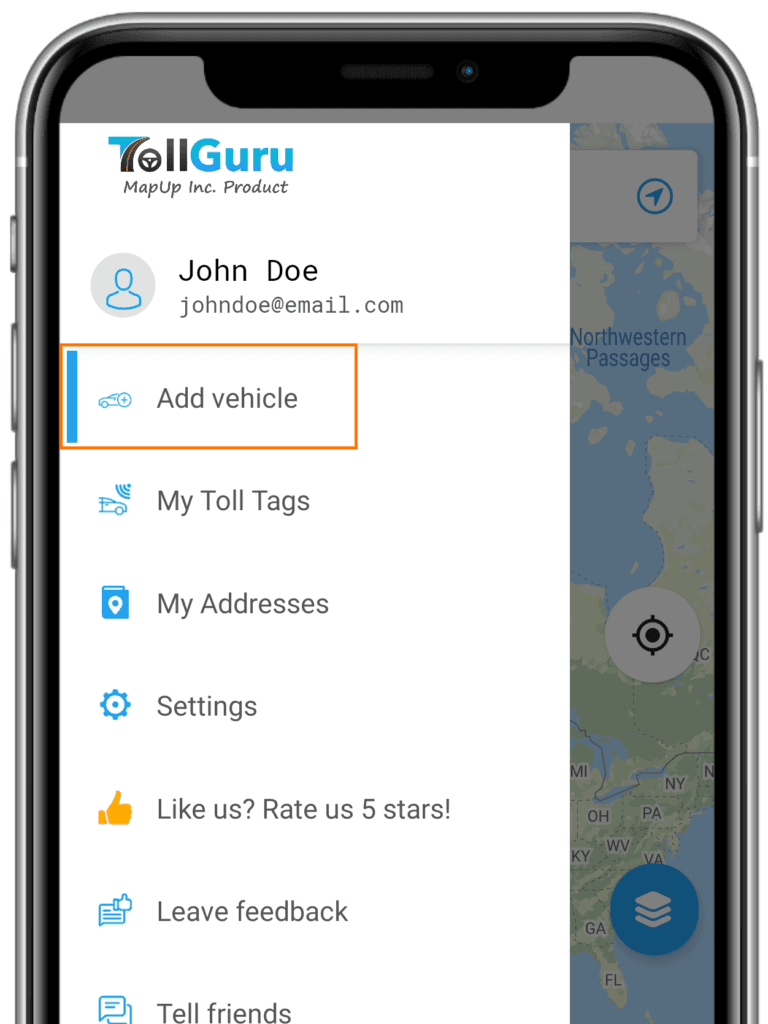
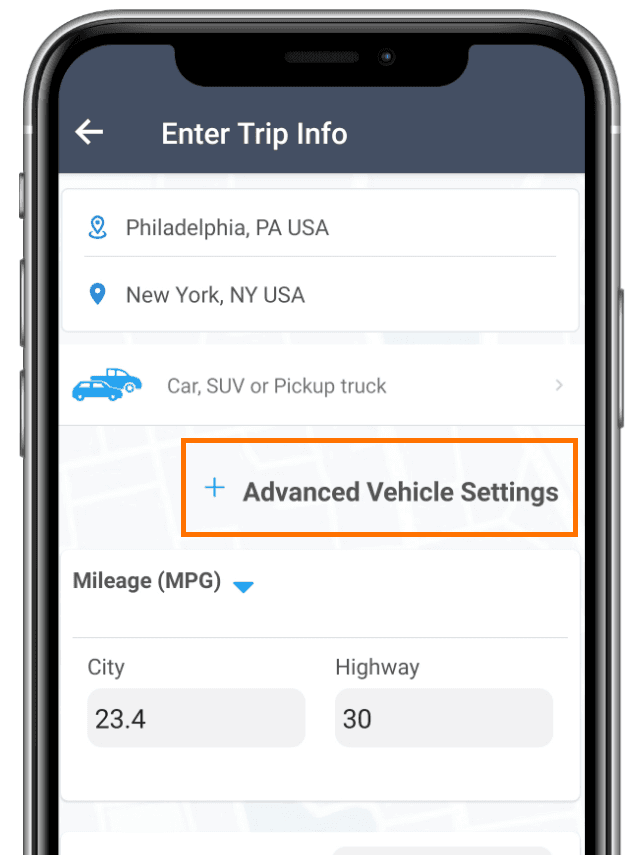
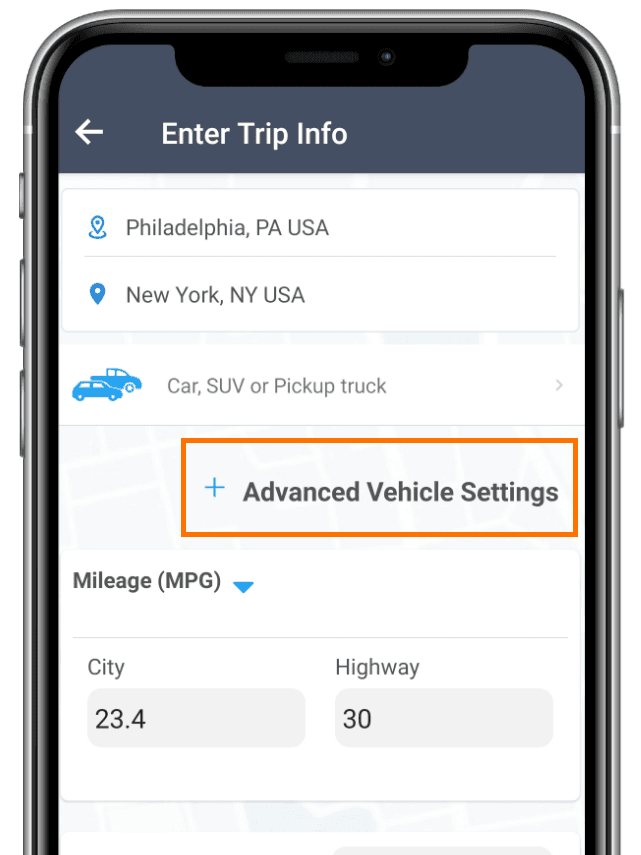
Alternatively, you can add vehicles while filling details to calculate a trip and selecting the Advanced Vehicle Settings option.
To save vehicles, you need to fill specific details about the vehicle and give it a name.
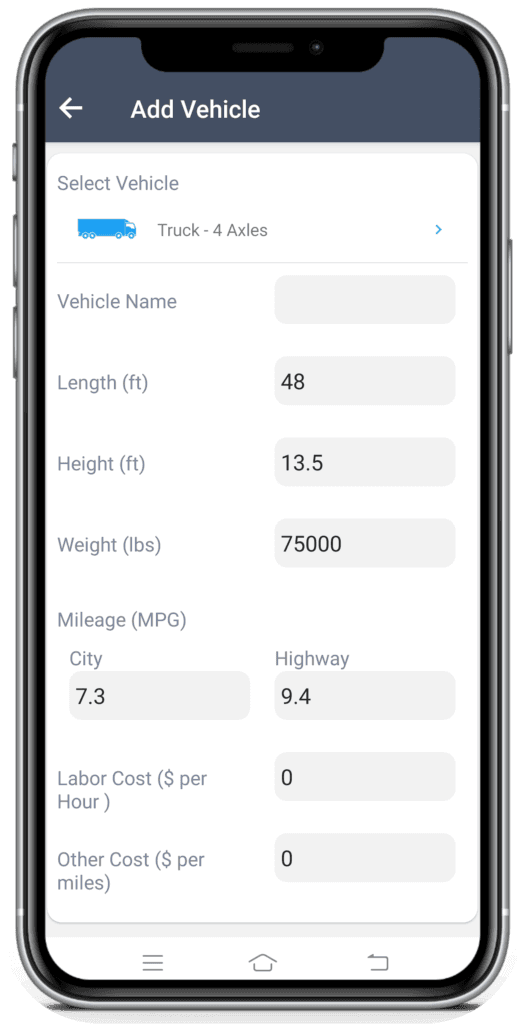
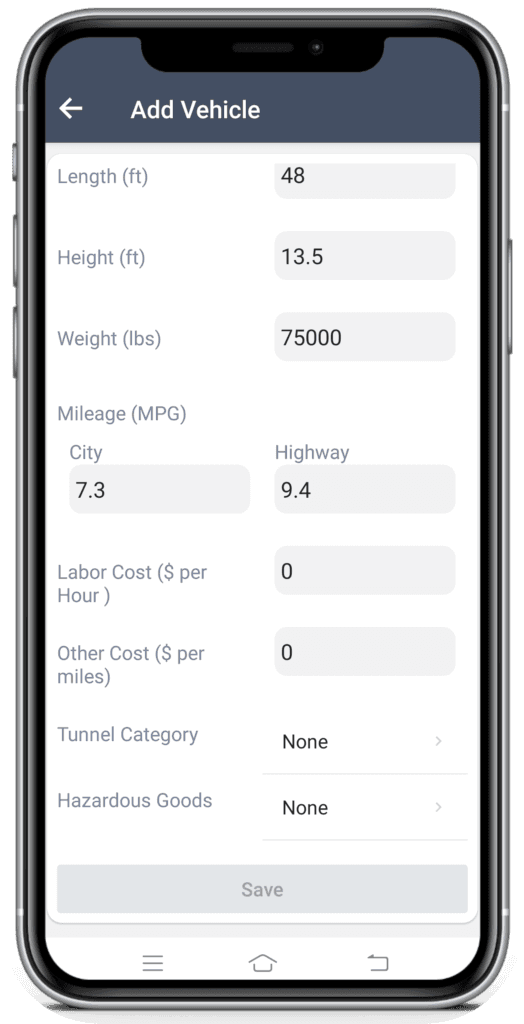
How to access saved vehicles?
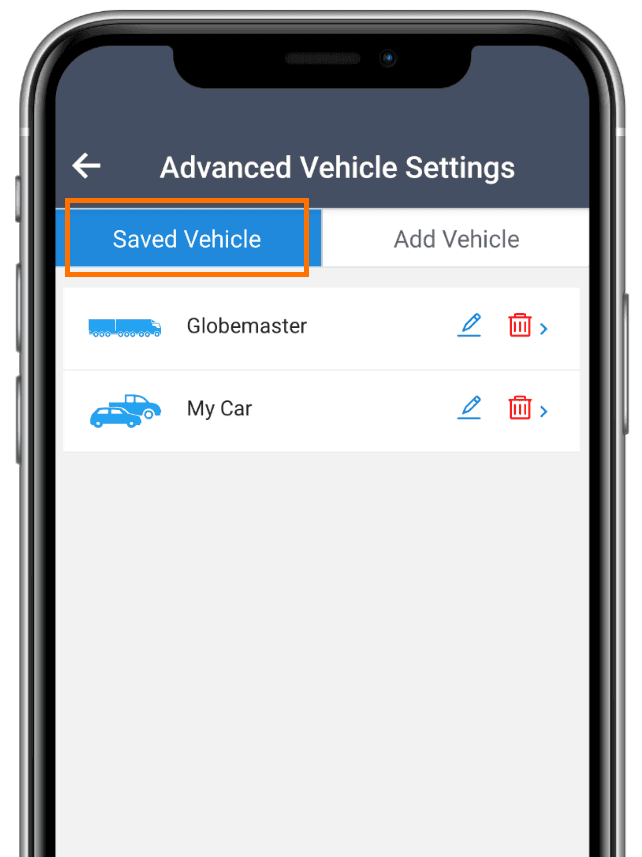
To access saved vehicles, after selecting the destination, select the Advanced Vehicle Settings and tap on the Saved Vehicles button on the top.
All the saved vehicles will appear on the screen.
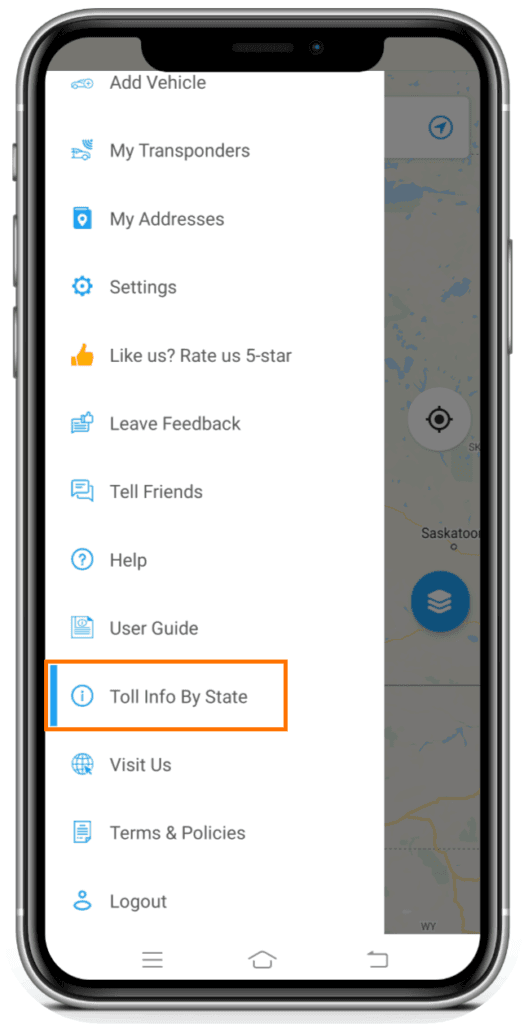
TollGuru Toll Info Directory
Get information about all the major toll roads, turnpikes, tollways, highways, bridges & tunnels information of 20+ regions across the world through Toll Info By State menu option.
How to do trip calculations?
Trip calculation with TollGuru app is pretty straightforward: enter your start and destination location and there you go! To get a highly precise trip cost, you can always customize your vehicle, specify mileage, toll tags you have (or not), departure time etc.
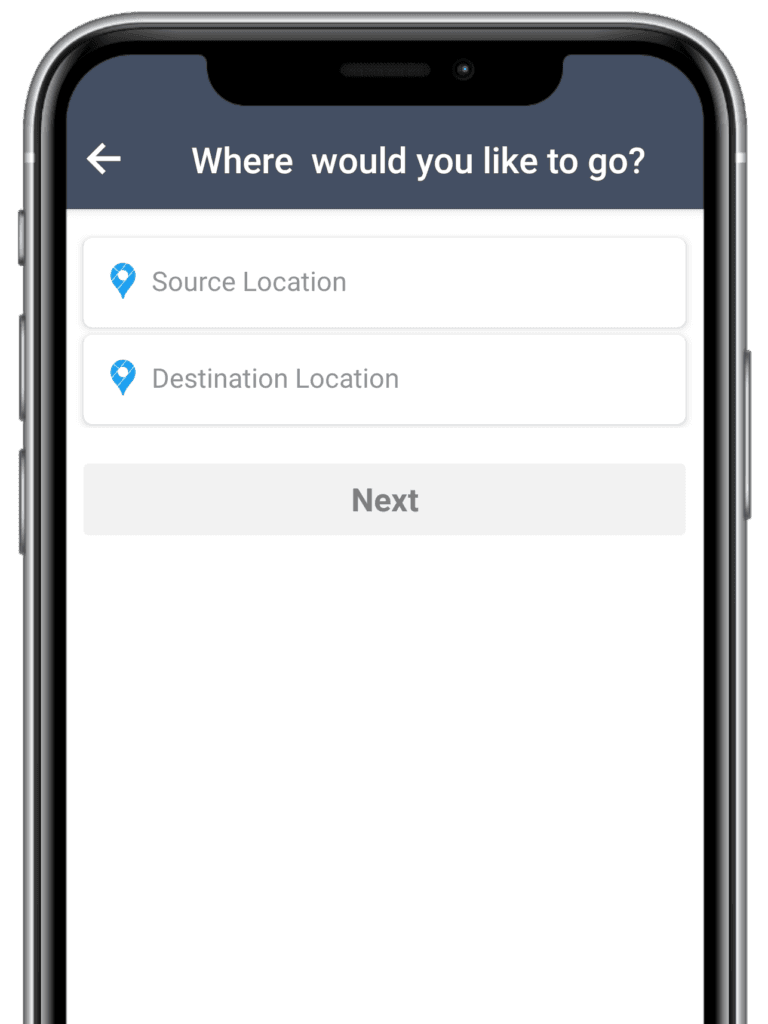
Adding source and destination locations
Enter the origin and destination for your journey in the two columns. This is a mandatory field as the app suggests routes based on these entries.
You will be able to see your last filled locations as suggestions for quick access.
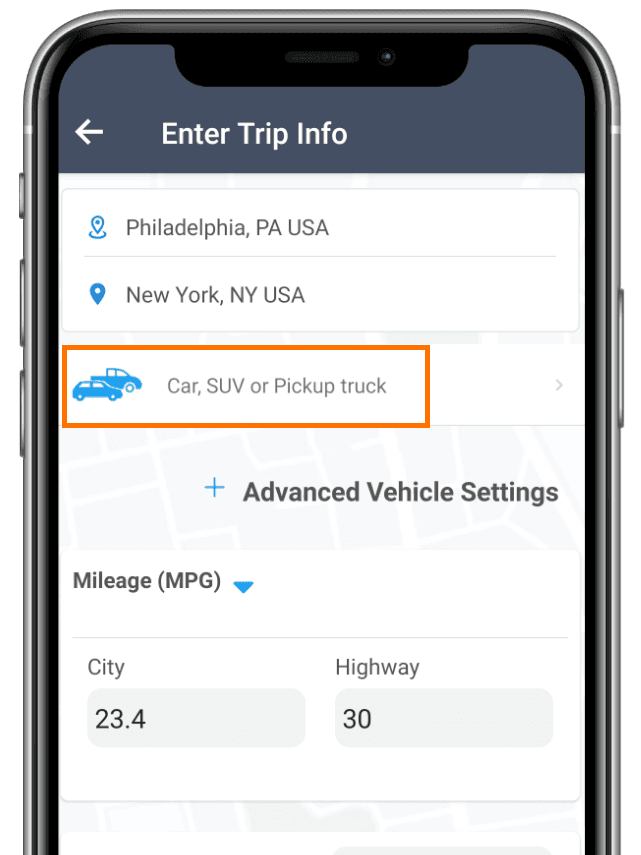
Selecting and customizing vehicle for toll calculation
Toll rates differ largely for different vehicle types. Select the vehicle to calculate accurate tolls and trip cost from the options of selecting and customising vehicles from car, SUV, pickup truck, truck, bus, motorcycle, RV, rideshare, taxi, carpool etc.
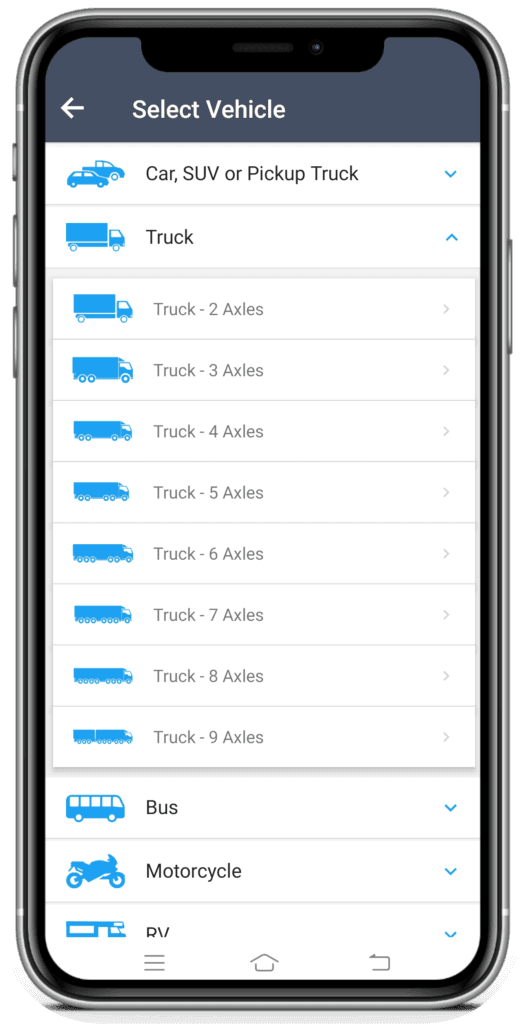
Customizing vehicle for toll calculation
Auto: Select from 2-axle cars, SUV, Carpool, Pickup with four tires, 6-tires, and 1-axle trailer attached.
Truck: Select from 2-axle trucks to 9-axle trucks. Enter the height and loaded weight of your truck.
Bus: Choose between 2-axles or 3-axles. Enter height and loaded weight of the bus.
RV or motorhome: Select whether you have a 1-axle trailer. Enter height and loaded weight.
Motorcycle: Select whether you have a 1-axle trailer.

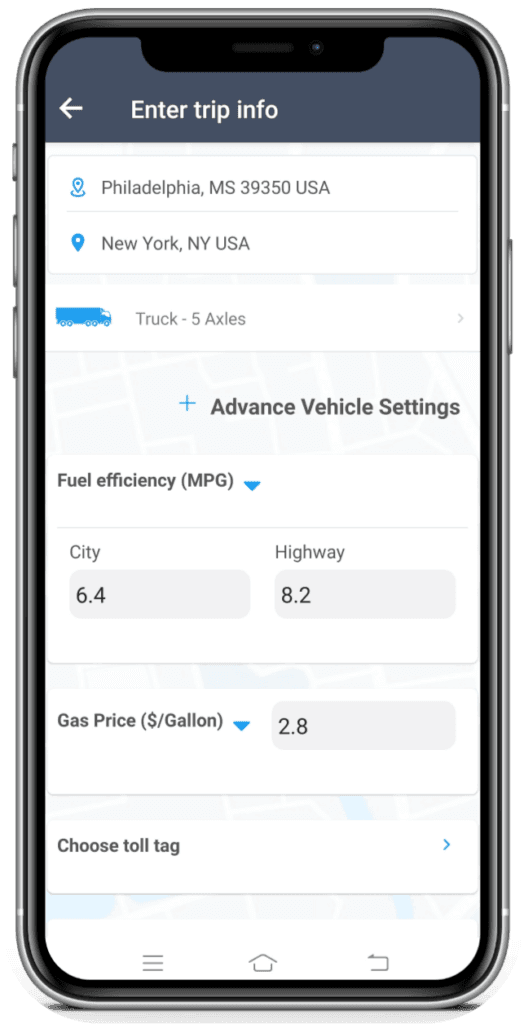
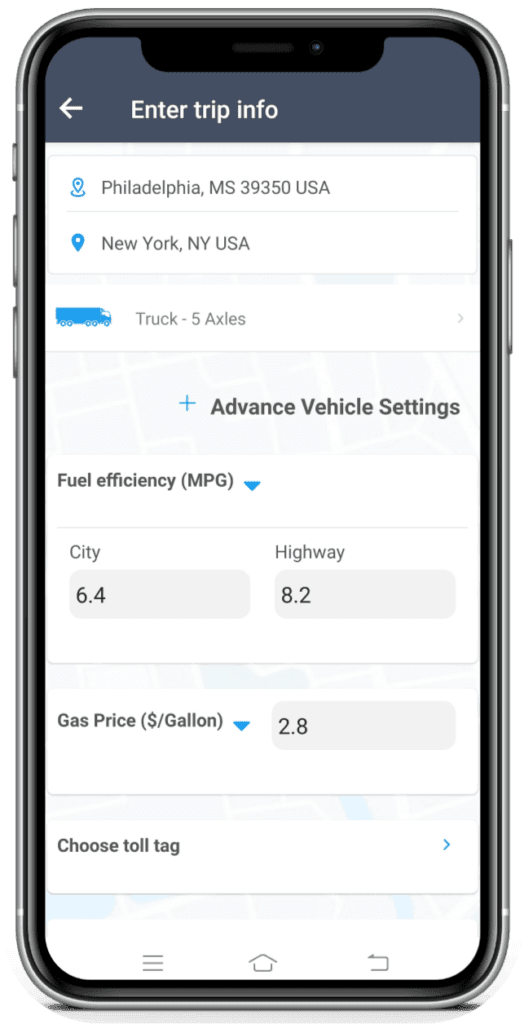
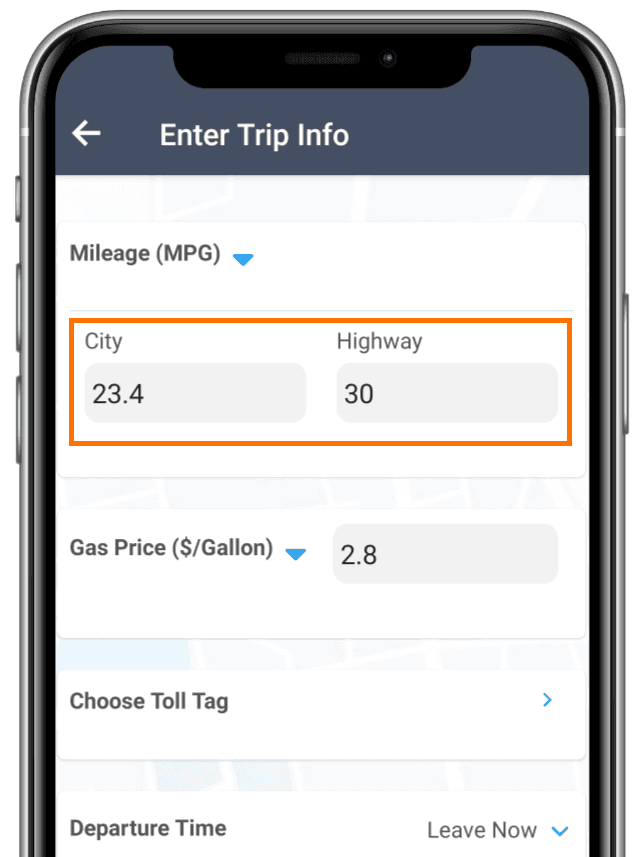
Add mileage for city and highway
For quick and precise fuel calculations add the mileage for city and highway. The is an optional field; a default value is pre-set for your region.
Customizing the unit to display the mileage
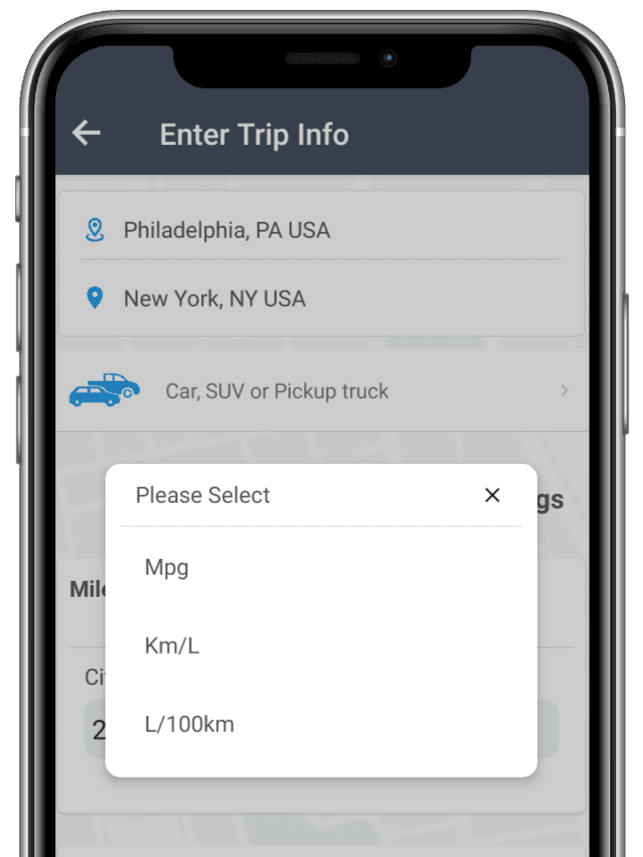
Select the dropdown next to Mileage (MPG) to see the values in other units:
- Mpg
- Km/L
- L/100km
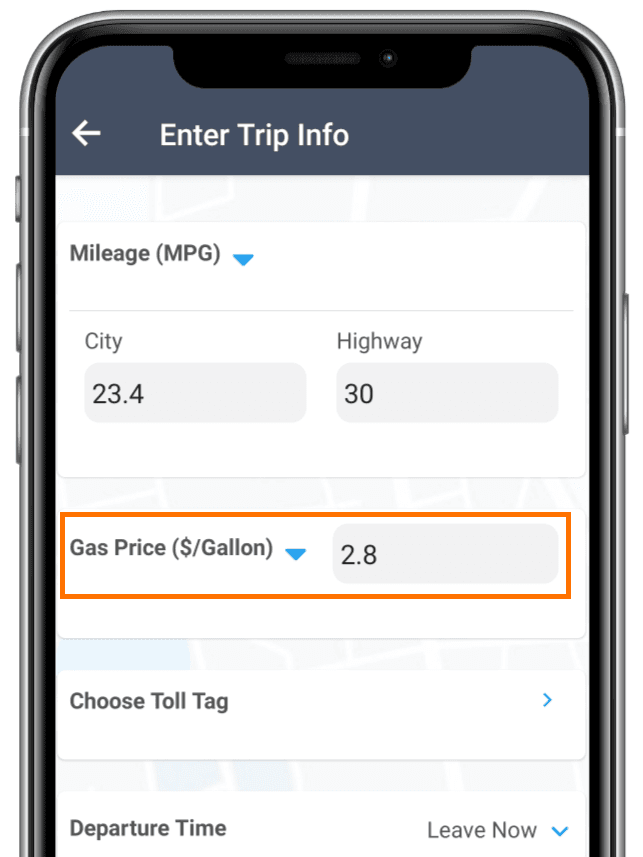
Add the gas price
Update your gas price to what you paid at the pump to get accurate trip calculation information. The is an optional field; a default value is pre-set for your region.
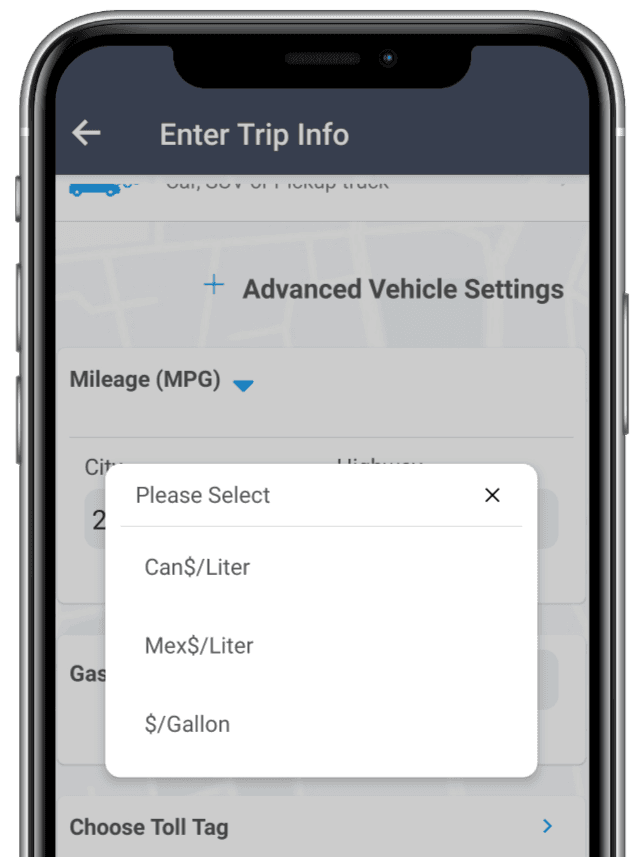
Customizing the unit to display gas price
Select the dropdown next to Gas Price to see the values in other units:
- Can$/Liter
- Mex$/Liter
- $/Gallon
Selecting tag transponder/toll pass
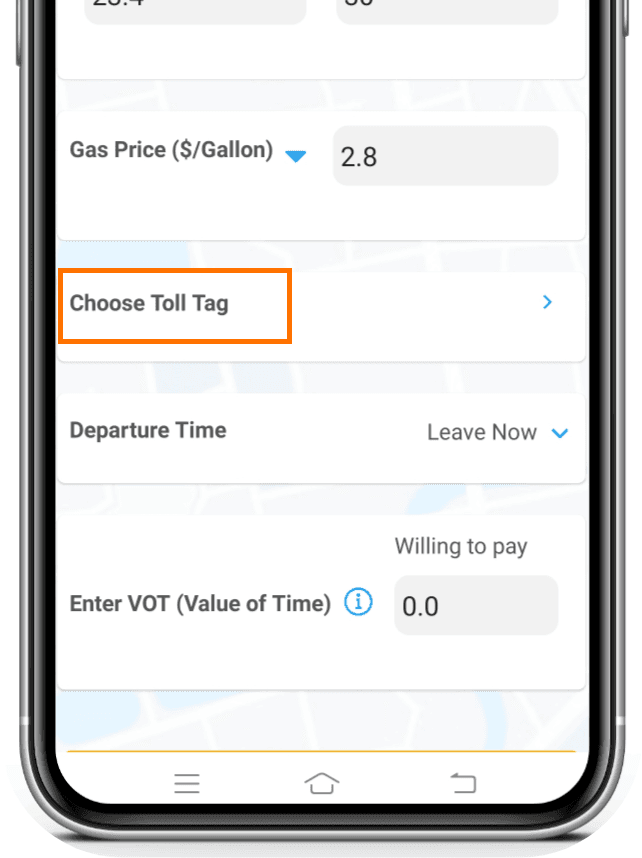
Choose the tag transponder(s) from the Choose Toll Tag option to see the toll cost applicable to the transponder(s) and its applicability.
The total toll for a route is the toll for the transponders on toll plazas where your transponders work + cash cost (or license plate video rate) for locations where your transponders do not work.
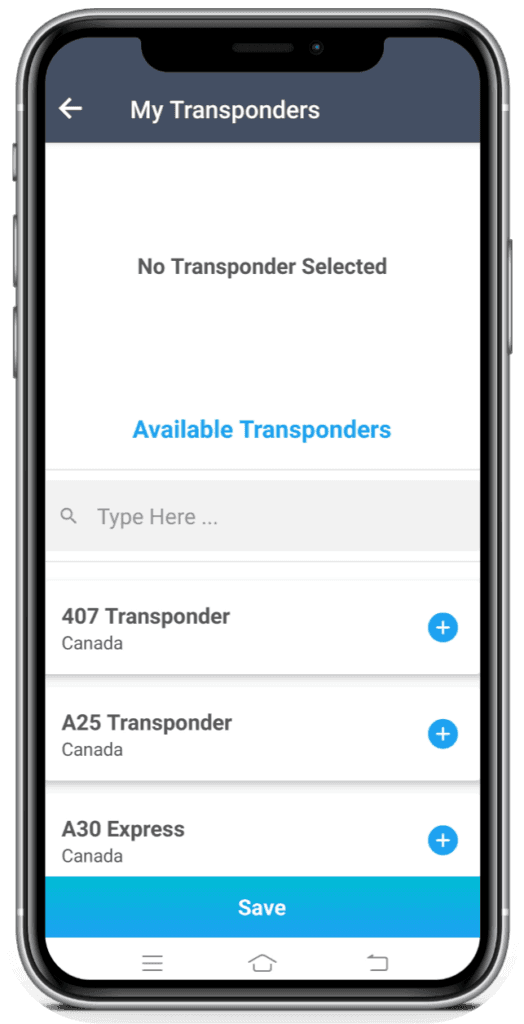
To select the tag transponder/toll pass you can either search or click on the transponder from the list of available transponders.
You can select more than one transponder for your trip.
Selecting departure time
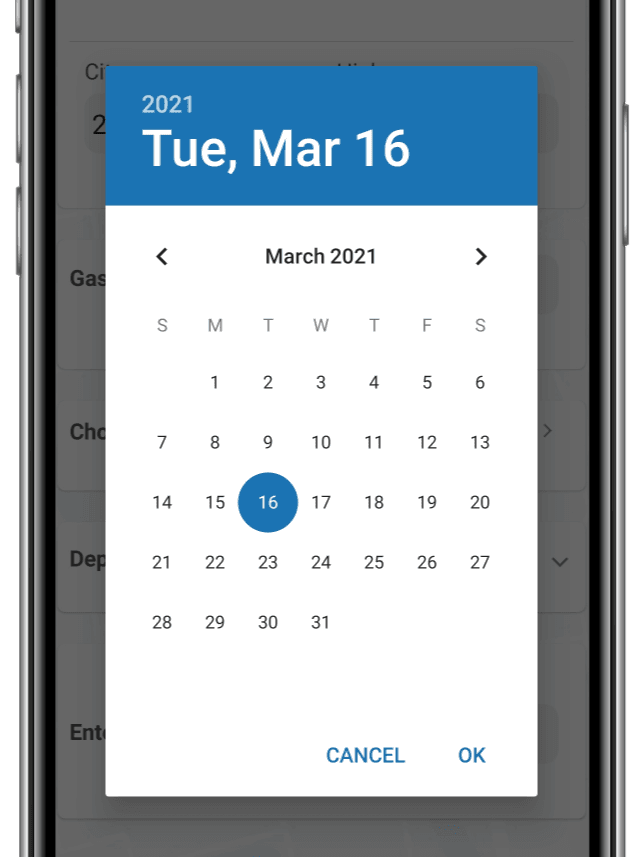
Tolls vary with day and time of the day. Departure Time option allows you to change the time and day of travel to get precise trip calculations.
If you want to plan a trip in advance or look for tolls in a different time zone, you can select the departure date and time accordingly.
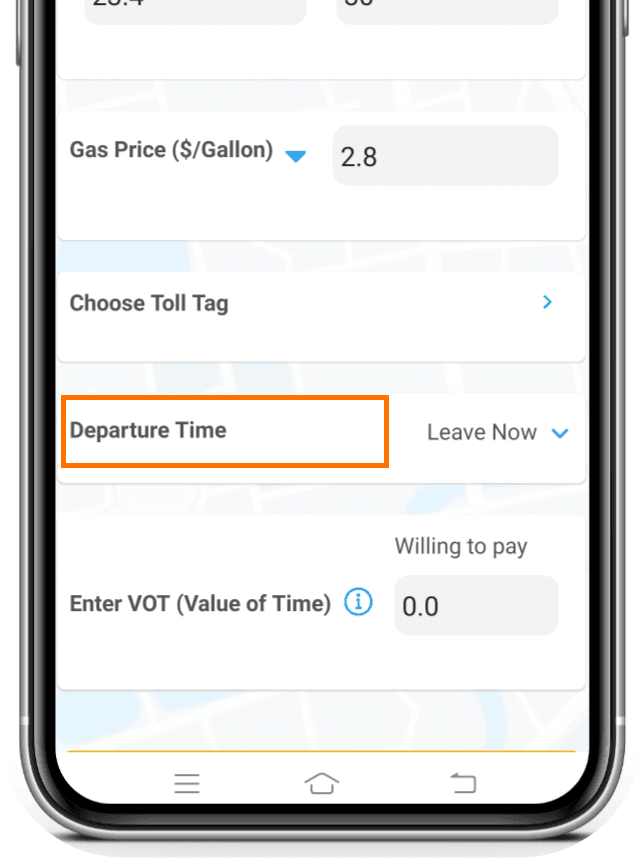
Default departure time is your local time. Say it is 7:00 AM in New York City (in your time zone). You search for San Francisco. The default toll rates returned are at 4:00 AM in San Francisco time (at the time of your search).
If you want toll rates at 7:00 am in San Francisco, you will need to select 10:00 AM when searching in New York.
All mapping applications, including Google maps, return search in the local time zone of the query.
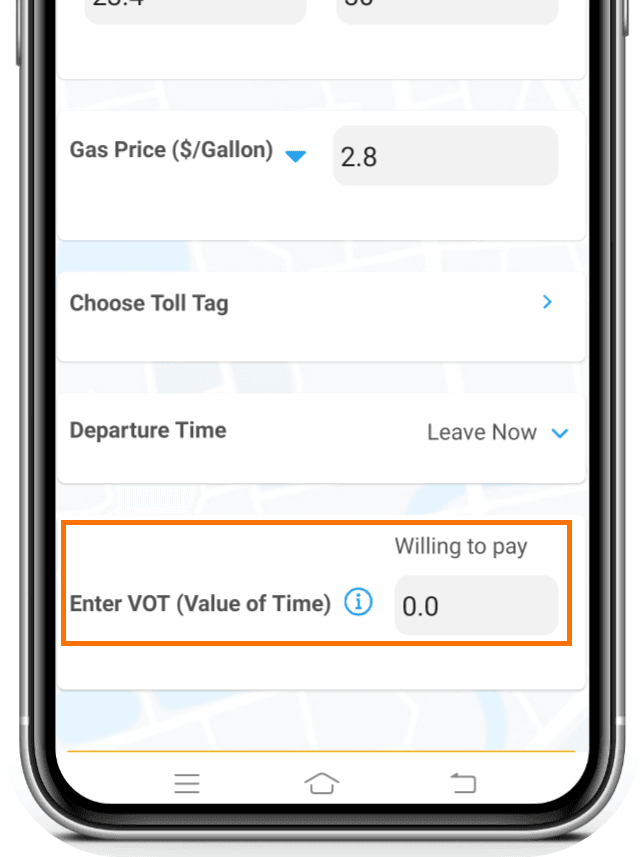
Enter Value of Time (VOT)
VOT is the money that you are willing to pay for saving 15 minutes of travel time in order to get a specific route option that is faster (but costlier) than the usual route option.
If your VOT is too high, you will pick the fastest route. Therefore we cap VOT as willing to pay $100 to save 15 minutes of time.
Interpreting Results of TollGuru App
With Tollguru app you don’t get just the fastest route but a cheaper one and other optimal routes as well. Check locations and details of all toll plaza on map, compare trip costs, time and share results with others as a weblink instantly.
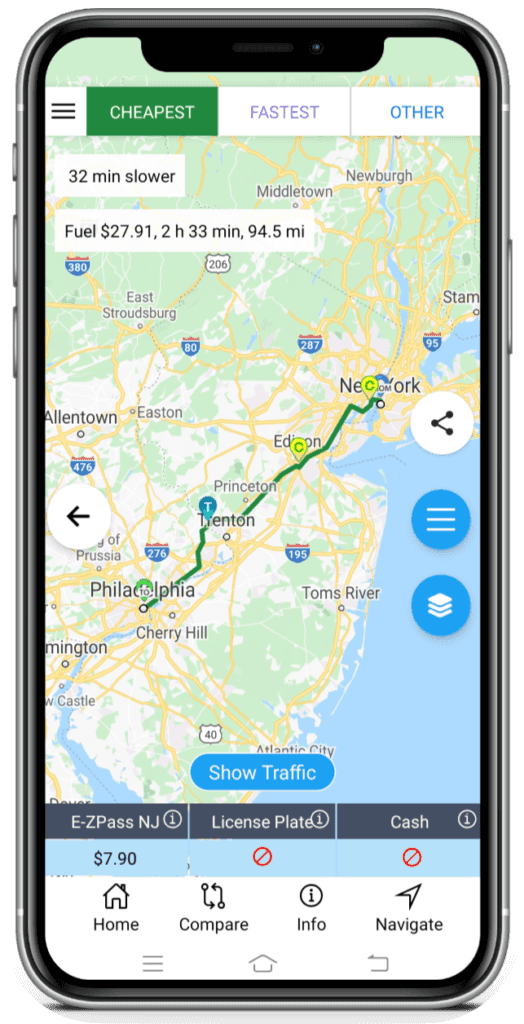
Select the best route for yourself
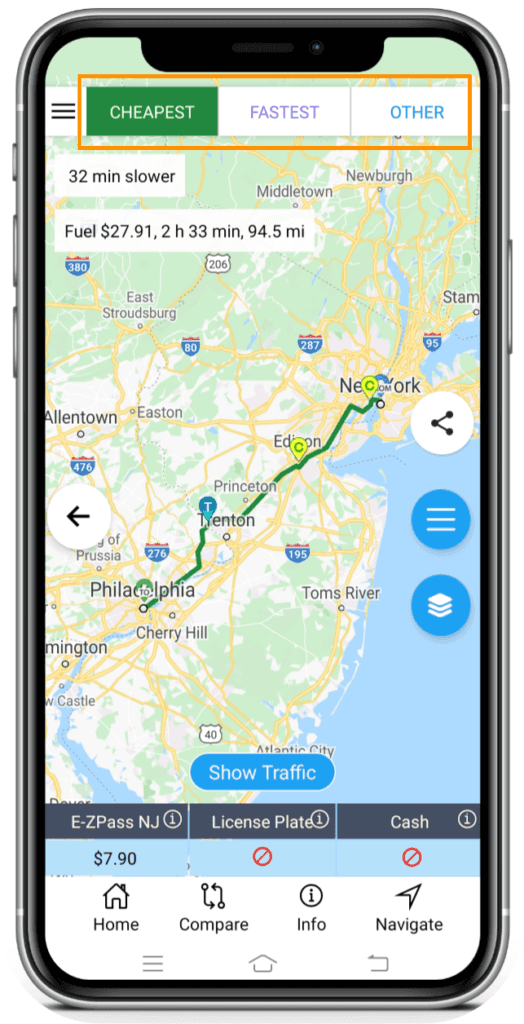
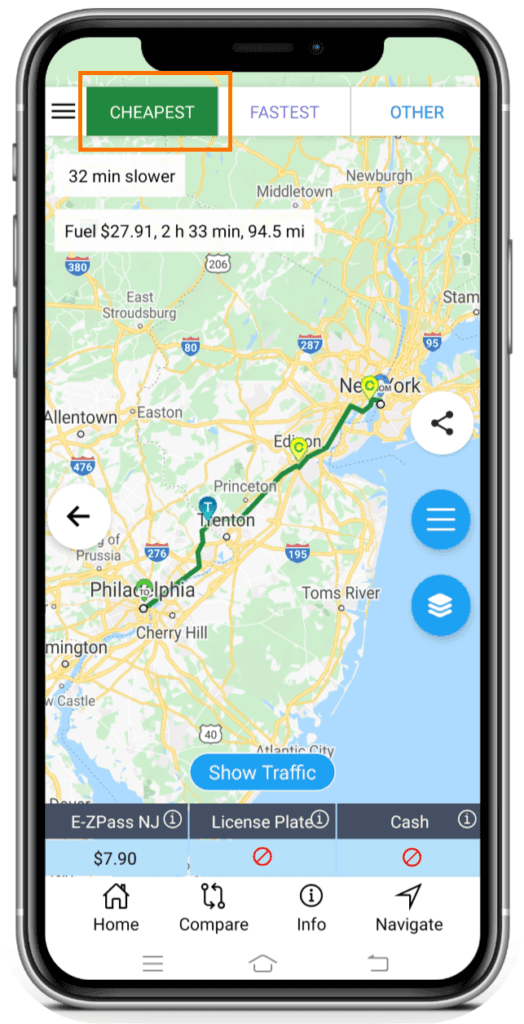
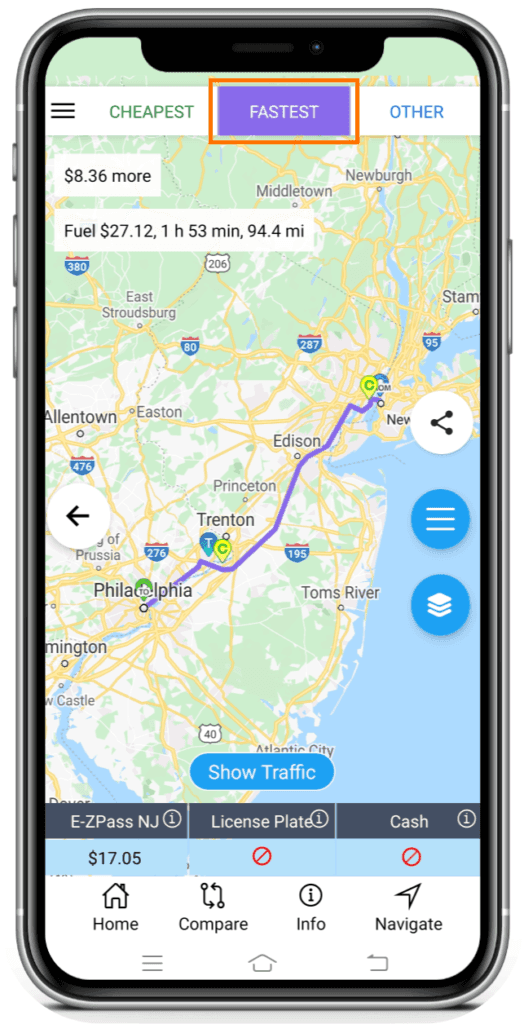
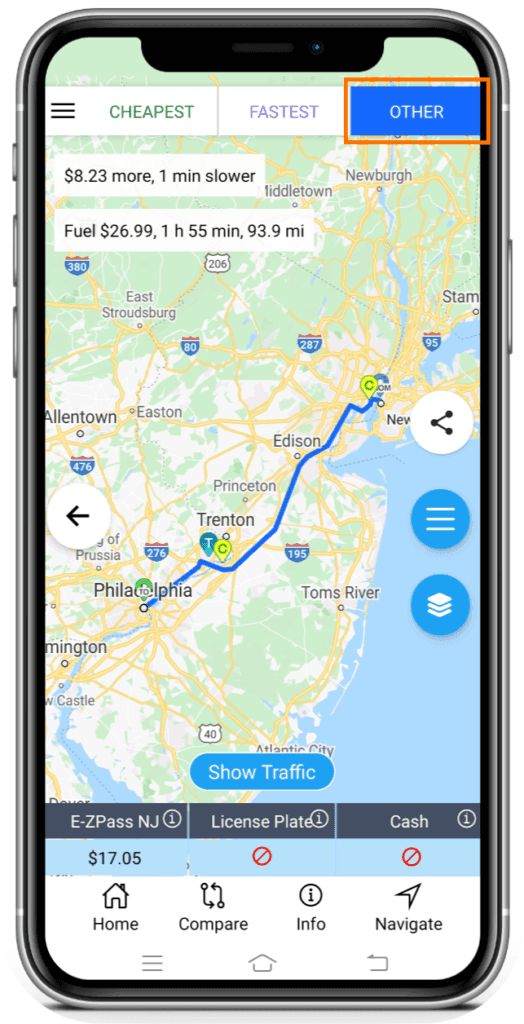
The result page appears after submitting the route calculation. Click on the “CHEAPEST”, “FASTEST” and “OTHERS” tabs on top of the map to see the route details for each of these options.
Tip: If the submit button remains greyed out, confirm whether trip start and end addresses and the rest of the mandatory fields are populated correctly.
Check toll details on the map
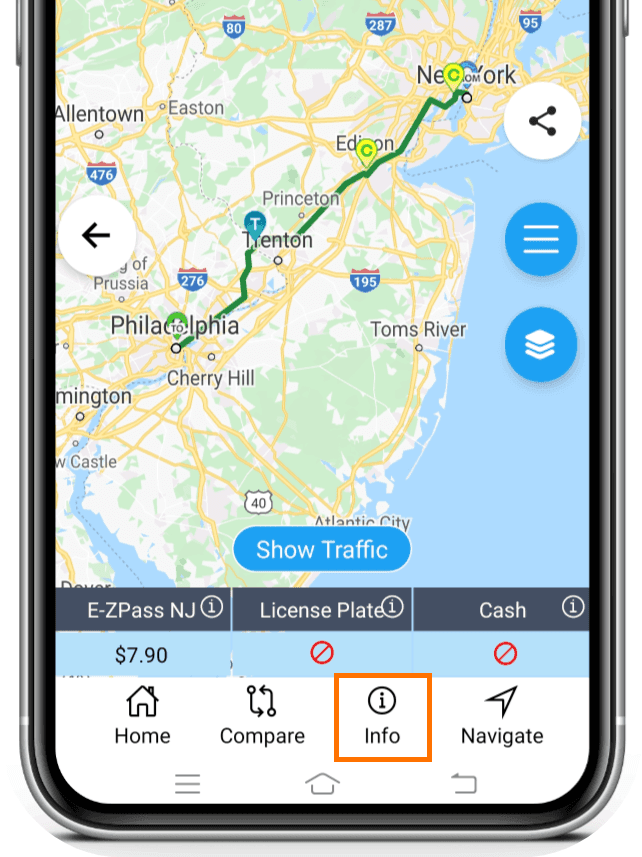
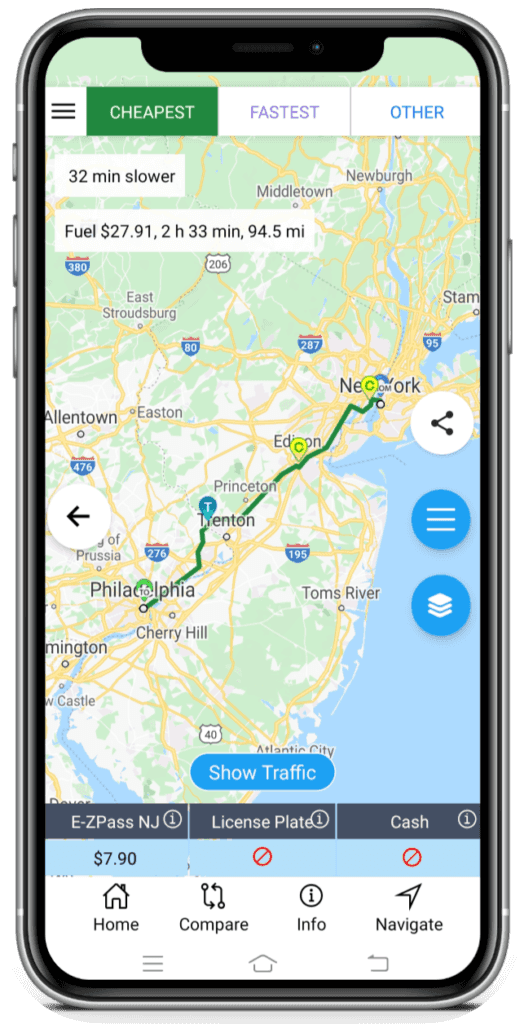
You can see the toll details for the selected route through map by tapping over the ‘T’ and ‘C’ icons; they are toll plaza locations.
‘C’ indicates acceptance of cash and ‘T’ indicates acceptance of toll payment through transponder only.
Tapping on the ‘T’ and ‘C’ icons on the map shows the toll details for that toll plaza.
 Accepting payment through toll tag
 Accepting cash payment
Check toll details from the result screen
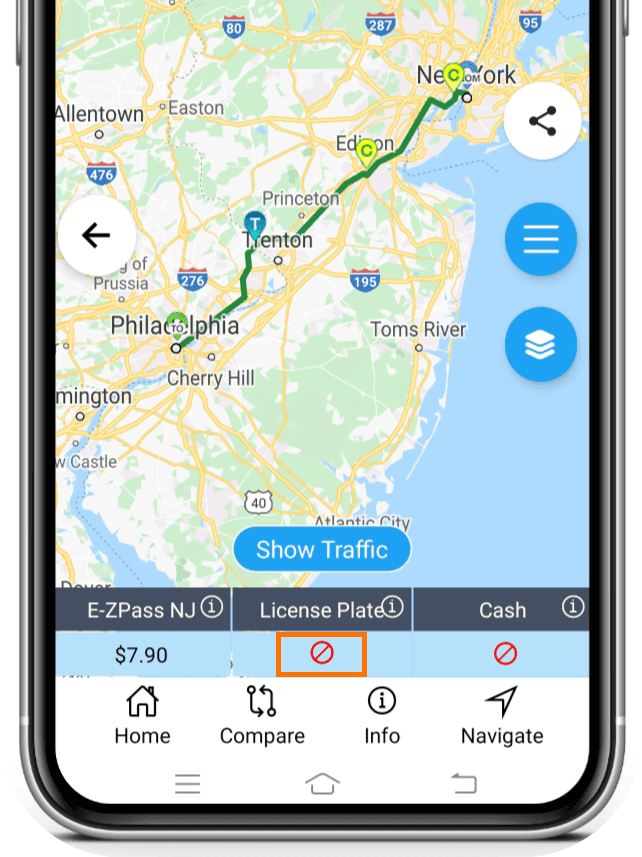
The table below the map shows the toll cost when paying with cash, applicable tag transponder and licence plate video payment method for the selected route.
This icon under a toll payment method indicates that the said method is not accepted for payment.
For example, in the screenshot beside, Licence Plate/Video payment and cash payment method is not acceptable.
Compare routes to choose the best option
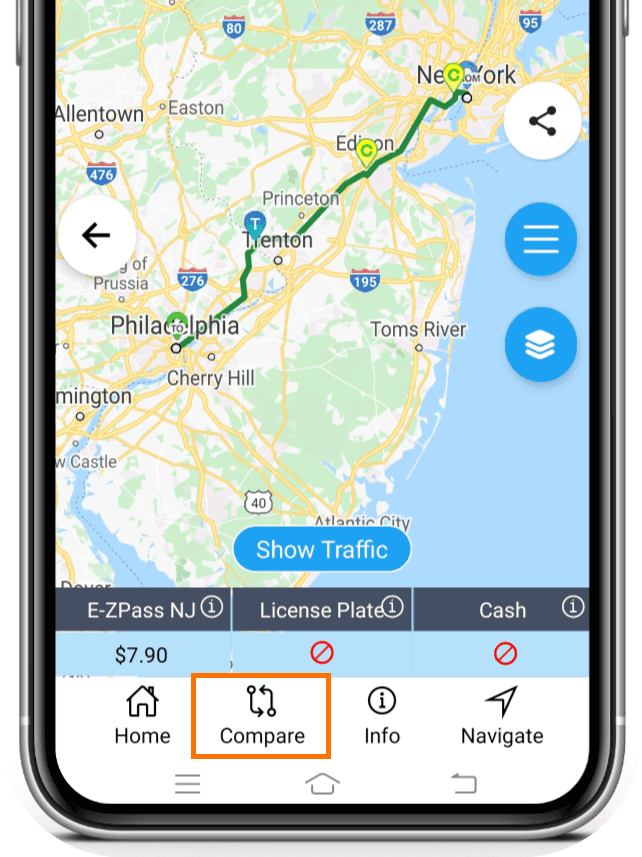
The Compare button provides a comparison of all the routes you can pick.
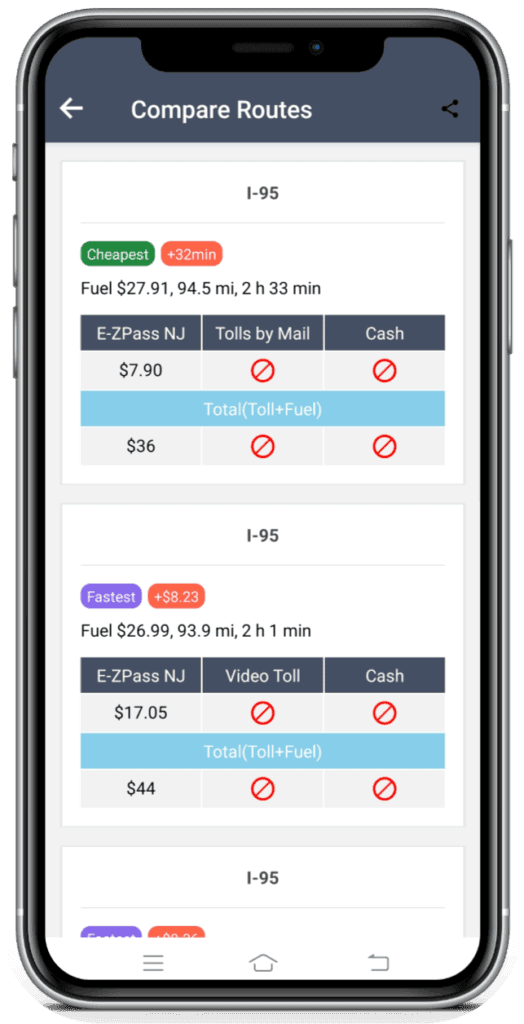
On clicking it, the screen will show all the details for all route options mentioning the summary for these routes for total trip cost, tolls, gas cost, travel time and distance.
On the Compare Routes screen, you will be able to see the trade-off among all the routes.
Share results
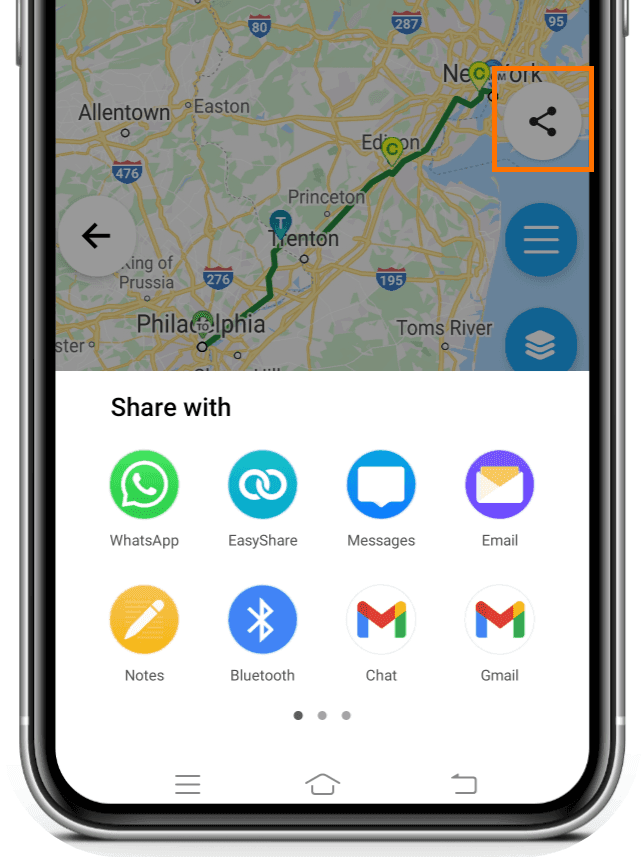
You can share the results with someone through other apps on your phone including WhatsApp as a web link.
Tip: The person receiving the result does not need TollGuru app to view it.
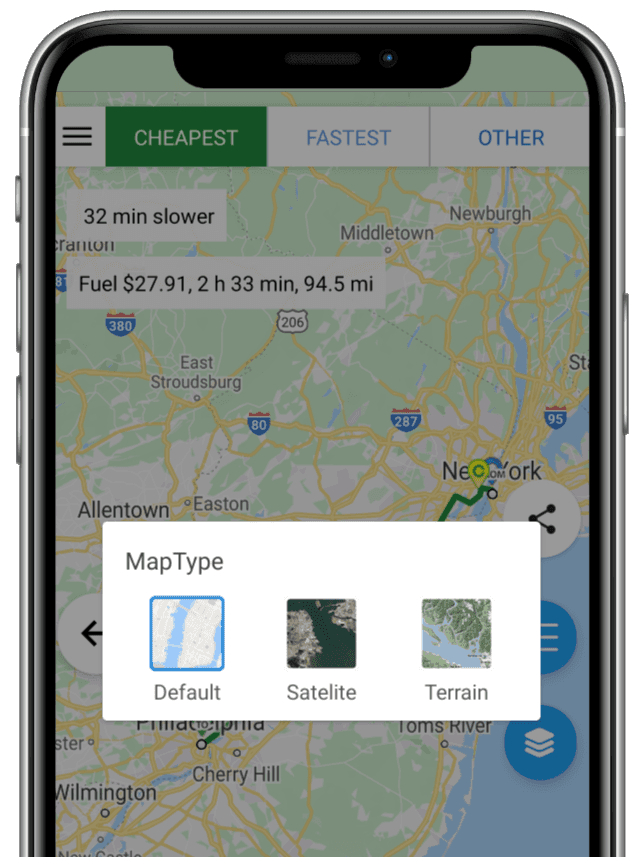
View results in different map type
You can see the route and toll details in three different map layout settings:
- Default
- Satellite
- Terrain
Details of all the tolls plazas en route
Click on Info button at the bottom bar to see the list of all the toll plazas en route along with corresponding toll payment methods (tags, cash, others), their rates and discounts.